All your digital media goodness.
Jun 26 2006

By default, the new TiVo Desktop software transcodes recordings to 320×240 for portable devices. According to TiVo VP Jim Denney this decision was made to limit potential piracy. However, there may be times when you’d prefer something a bit larger. For example the PSP (480×272), various PMCs (up to 640×480), various PDAs (up to 640×480), and (hopefully) future video-capable iPods all support higher resolutions. Additionally, if you’re interested in manipulating these files on a Mac with iMovie/iDVD why cripple your content? (For best results, do not transcode to a higher resolution than your source material.)
Step 1. Open up C:\Program Files\TiVo\Desktop\Support\encodeprofiles.xml in Notepad and study the various tivotrans:Profile name entries (in quotes) to determine which method you’ll be using for your device. You can confirm your selection in the My TiVo Recordings for Portables subfolder. Within the relevant profile, edit the hrez and vrez variables to the desired dimensions. Before going down this path, it would be prudent to make a backup copy of encodeprofiles.xml.
Step 2. Use TiVo Desktop as you normally would and/or… To transcode immediately open a command window to C:\Program Files\TiVo\Desktop, type this, and hit enter: TiVoConverter.exe /profile=”xxxxxx” “C:\yyyyyy\zzzzzz.tivo” Substitute xxxxxx with what you researched above, yyyyyy with the TiVo Recordings directory path, and yyyyyy.tivo with the show you want to transcode.
Step 3. There is no Step 3. (more…)
Jun 25 2006

One limitation of the new TiVo Desktop software is that it only allows you to transcode newly downloaded recordings for portable devices… Or so we thought! If you’re not scared of the Windows command line and perusing a small XML file, you can transcode any .tivo show on your system — new OR old.
Step 1. Open up C:\Program Files\TiVo\Desktop\Support\encodeprofiles.xml in Notepad and study the various tivotrans:Profile name entries (in quotes) to determine which method you need for your device. Confirm your selection in the My TiVo Recordings for Portables subfolder.
Step 2. Open a command window to C:\Program Files\TiVo\Desktop, type this, and hit enter: TiVoConverter.exe /profile=”xxxxxx” “C:\yyyyyy\zzzzzz.tivo” Substitute xxxxxx with what you researched above, yyyyyy with the TiVo Recordings directory path, and yyyyyy.tivo with the show you want to transcode.
Step 3. There is no Step 3.
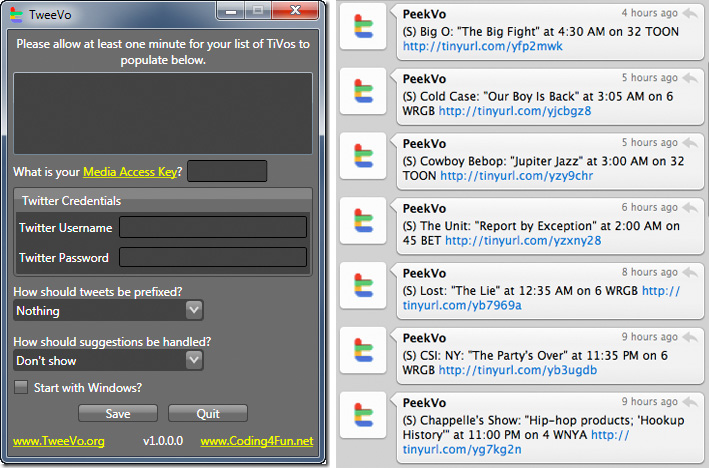
Someone should be able to whip up an executable in about ten minutes to make this a bit more efficient (drop-down for profile, text box to paste .tivo file name). If we don’t see one in the next few days, I’ll borrow VisualBasic and crank it out.
TiVo’s KidZone software update (client & server components) includes a new feature to repair personal settings should they get out of whack. How would those settings lose sync, you ask? Hard drive upgrade. While it’s unofficial and unsupported, if you’ve opted in to KidZone or Guru Guides and upgrade your hard drive, TiVo will repopulate your Season Passes and Wishlists on that new drive. Awesome! I’m more than willing to trade a little privacy (I can’t be the only one with a Paris Hilton Wishlist, can I?) for an “online” backup of my recording preferences.

Jim McMurry has reported success at running the SlingPlayer within Parallels, a free-during-beta virtualization software for Intel Macs. If you have a copy of XP lying around and can’t wait the 2 or 3 months until Slingbox natively supports OSX, you’ve got your solution. Jim’s Slingbox is controlling & streaming his Dish Network DVR 510 and he has enabled Parallels audio output.
Jim says: I decided to make a project out of getting Slingbox setup today. Not knowing for sure if it would work on OSX, I got everything setup using only OSX and Parallels VM running Windows XP. Overall the video is pretty awesome for a player running inside of a VM on Parallels. Full screen inside Parallels (not full screen Parallels, but Slingplayer fullscreen inside Parallels) works very as well.

Greg Burns has whipped up a clever little TiVoToGo app called TiVo Attach that reapplies header metadata after editing a show. Though this is just the first phase… over at the TiVo Community Forum we’re trying to understand how TiVo labels shows to ultimately add custom headers to personal .mpegs that are honored by grouping when using TiVoBack.
Greg says: TiVo Attach allows you to detach the metadata information (header) from a .tivo file and reattach it to any .mpg file. A common scenario would be to edit a .tivo file in VideoRedo to remove commercials. The output from VideoRedo is a plain .mpg with the metadata removed. Without the metadata, these edited .mpg files will no longer group in folders when transferred back to your TiVo. TiVo Attach allows you to reattach that metadata, thus preserving the information needed for grouping.
A mysterious reader graciously wrote in with a clever hack that allows you to essentially re-record and edit your TiVo’d shows with no additional hardware or software. I haven’t tried it yet, as I do my editing and conversion on PC, but it looks interesting.
Tivo can playback and record a TV signal at the same time. This means if you have Tivo set up to record through RF, just put a line from RF in to RF out and it can record the video it’s playing back. This allows you to edit video, lower the quality of video and many more things. Just hit record and play back a video and Tivo records it with ffwds editing out parts you don’t like and at whatever quality you like.
There is also a great effect of the the screen fading to white as Tivo copies its own live signal. The picture is Tivo copying itself to white as it buffers it’s own signal and replicates faults like making a copy of something over and over again until you have nothing. The picture gets smaller (the screen should be full blue) and you can almost see the status bar has copies of itself behind it.
These are features Tivo does not have, many other DVRs have and many people request. Since I figured it out, I do it all the time. All my videos in my playlist, which are just a hand full now, are these edited videos. I have not seen this hack anywhere. Tell everyone about it.
Feb 8 2006
In case you weren’t aware, a few months back my Engadget handlers let me out of the basement research department to write the occasional tutorial. This week’s how-to describes streaming any audio through your TiVo, such as Sirius, XM, or your locked down iTunes. While the hack isn’t new, it isn’t well publicized so I took the opportunity to share the love. Before enlisting Galleon to help pass the audio, you may want to try loading the .m3u playlist into TiVo Deskop — on one of my machines it works, on the other it crashes. The article can be found here.
If all you’re after is streaming music, TiVo’s new online apps include Live365 and apps.tv offers Last.fm. If you’re interested in a more robust MP3 player than TiVo’s Desktop software, both AudioFaucet and Galleon’s music support are worth checking out.